
Customise text free product select cart
- click on this link
- edit text
- click on "save"
- caution as this is the default template for the shopping cart. Adjustments are made immediately

Unblock customers
- Go to Wordfence > Firewall
- open the "Block" tab
- tick the customer who is blocked
- click on "unblock"
- a confirmation popup will appear
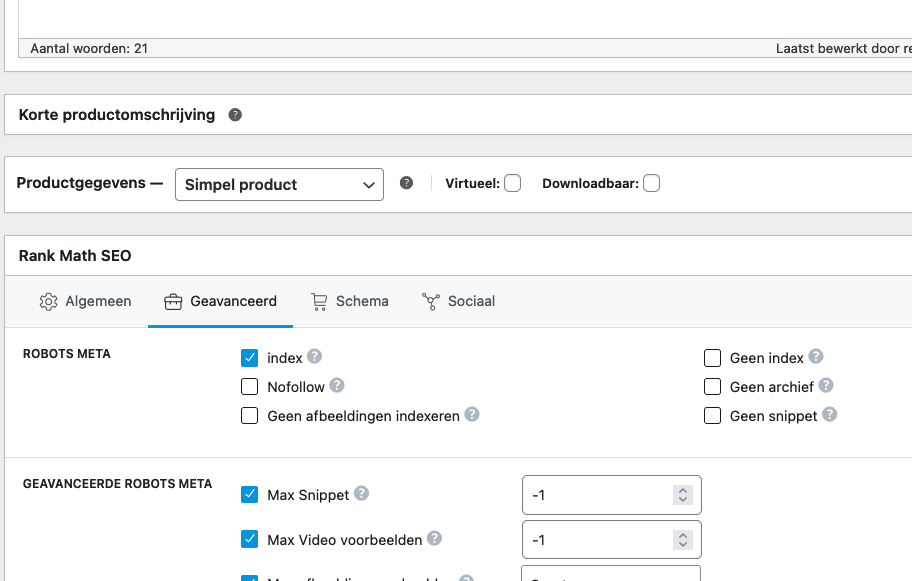
Hiding products from Google
- go to product
- open the Rank Math Seo tab
- tick "no index
- product update
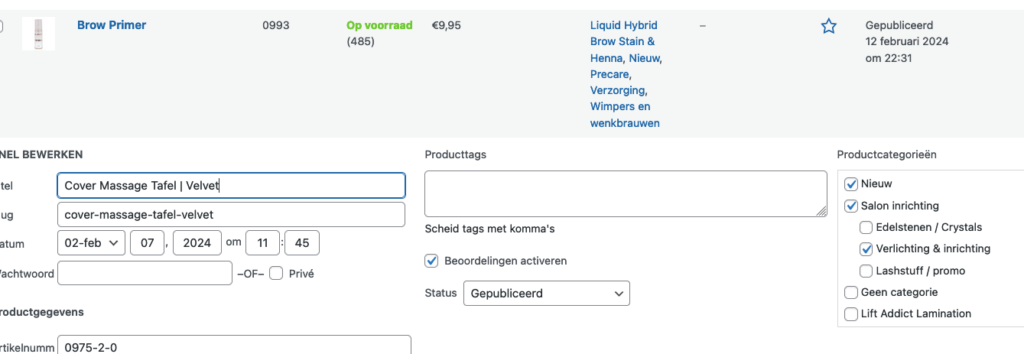
Add "new" products on the homepage
- go to product overview
- click on "quick edit"
- tick "new" under product categories
- of course uncheck if it is no longer a new product
Insert video
- convert your .mov video to .mp4 for best results at: https://cloudconvert.com/mov-to-mp4
- you can just leave the default settings here
- upload your .mp4 video to the media library
- go to the product and under "product description" click "add media" where you want it
- select the video you have just uploaded
- save page

Convert EU VAT
- Go to WooCommerce > Settings > EU VAT tab > Validation & Progress
- Open the First Validation Method tab
- Convert from Simple to cURL. SOAP refuses most ...

Placing or removing users in groups
- select the user(s) you want to add or remove by ticking them in the list
- select at the top which group this adjustment is for
- in addition, choose whether to add or remove them

Discount for groups
- Go via the sidebar CSP > Category pricing tab
- open "group-based category pricing
- you can add new lines via the plus sign in the bottom right-hand corner
- so you can very specifically link group discounts to categories; some groups can be excluded from categories
- when you have finished, click on "save pricing"

Staff discount
- go to a product > product data
- opt for Customer Specific Pricing
- then select a specific customer or group
- add the discount price (can be percentage and flat rate)
- save the product with the new data
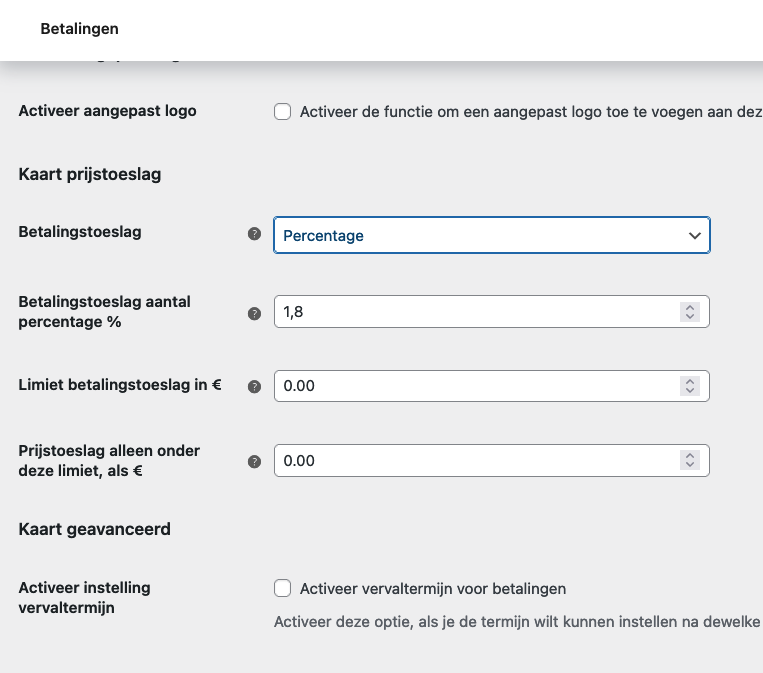
Extra charges for credit card and Klarna use
Woocommerce > Settings > Payments > choose right on Manage desired payment form
At the bottom, choose the allowance type and percentage. Then click update. An updated line with the amount will appear in the cart.

Resize photo
- go to the Photopea site
- go via "file" to "open" (screenshot 1)
- choose an image from your own computer
- via "file" go to "export as" and choose JPG (screenshot 2)
- you will see a box with "save for web" here (screenshot 3). Adjust the width and height here. Product photos are 600 x 600 pixels. Here you can use a slider to adjust the quality. Make sure that a picture never reaches 200 Kb
- Click "save" to download the edited photo to your computer. Give it an SEO handy name right away